 ☰
☰Setup Microsoft SSO For Overdrive
Contents
Supported features
Requirements
Configuration steps
Notes
Supported features
Service Provider (SP)-Initiated Authentication (SSO) Flow - this authentication flow occurs when the user attempts to log in to Overdrive.
User Federation, role management, etc. are not supported. Users and their Overdrive roles, information, etc. will still need to be managed within Overdrive.
Requirements
You must be an Azure AD Global Administrator
Your organization must use Microsoft Entra ID (Azure AD)
Be an existing Overdrive admin
Users Overdrive usernames must match their Microsoft email address exactly
Configuration steps
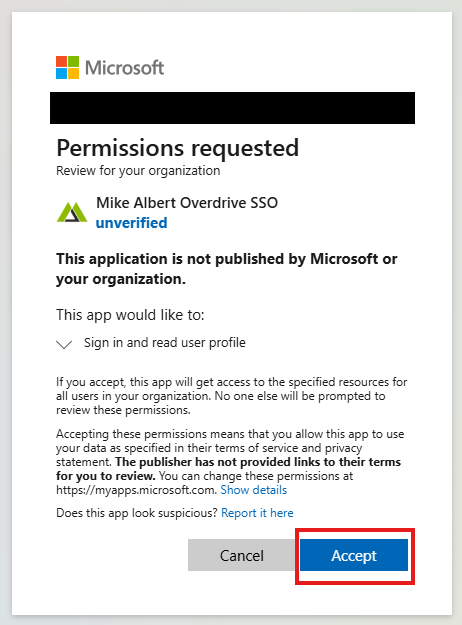
Sign in to Azure Portal as a Azure admin
Consent to Mike Albert Overdrive SSO Application by following this link and completing the steps:
https://login.microsoftonline.com/common/adminconsent?client_id=1ac20347-090a-4fdd-a0ea-3327915c7517&redirect_uri=https://overdrive.mikealbert.com
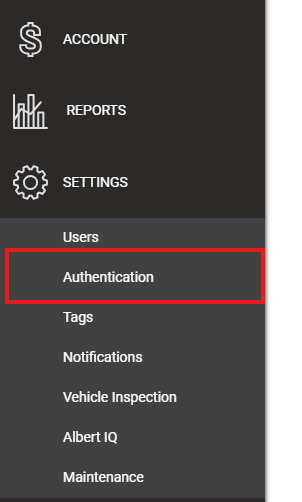
Log into Overdrive admin portal → Settings → Authentication
Toggle ‘Require All Users and Drivers to Authenticate with SSO’

In the ‘SSO Platform’ dropdown, select Microsoft
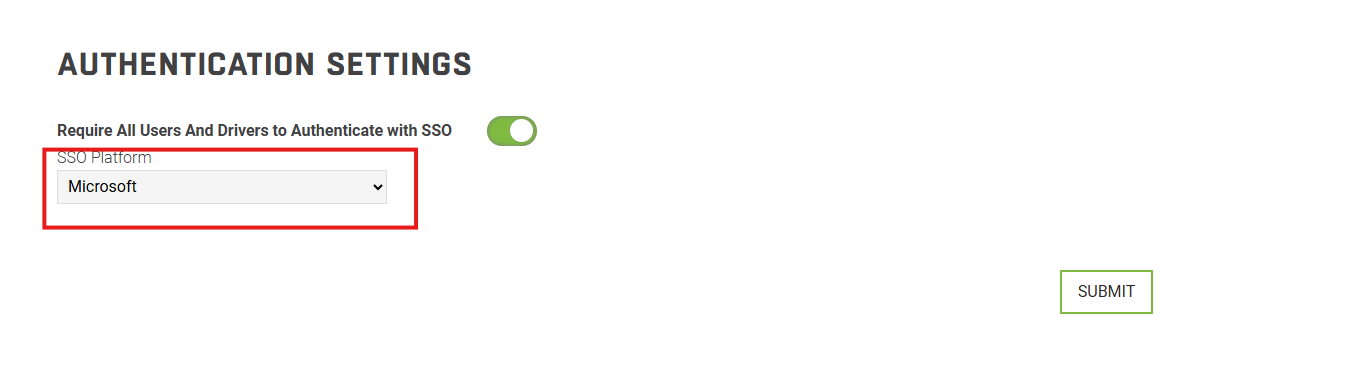
Click ‘SUBMIT’
Now all users will be required to login using Microsoft as SSO
Service Provider (SP)-Initiated SSO
From your browser, navigate to the
overdrive.mikealbert.comEnter your email address and click continue
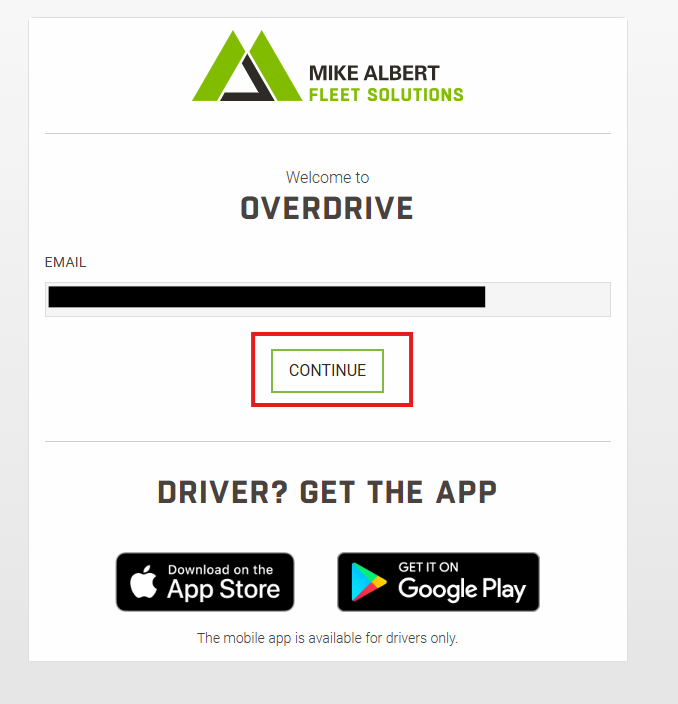
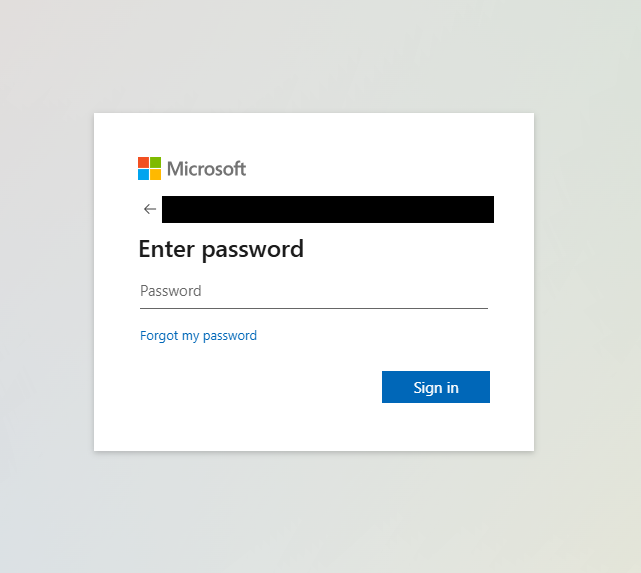
If all previous steps where completed, you will be redirected to Microsoft's login page
Log in with Microsoft. If your credentials are valid, you will be redirected to the OverDrive dashboard