 ☰
☰Setup Google SSO For Overdrive
Contents
Supported features
Requirements
Configuration steps
Notes
Supported features
Service Provider (SP)-Initiated Authentication (SSO) Flow - this authentication flow occurs when the user attempts to log in to Overdrive.
User Federation, role management, etc. are not supported. Users and their Overdrive roles, information, etc. will still need to be managed within Overdrive.
Requirements
You must be an Google Workspace Super Admin
Your organization must use Google Workspace
Be an existing Overdrive admin
Users Overdrive usernames must match their Google email address exactly
Configuration steps
Sign in to the Google Admin console as a Super Admin
Allow Mike Albert Overdrive SSO for your organization (required only if your organization restricts third-party apps):
Go to Security → Access and data control → API controls → Manage Third-Party App Access
Click Add app → OAuth App Name or Client ID
Search using this Client ID and select the Mike Albert Overdrive application: [PROD_GOOGLE_OAUTH_CLIENT_ID]
Configure the app as Trusted (or allow access for Sign in with Google)
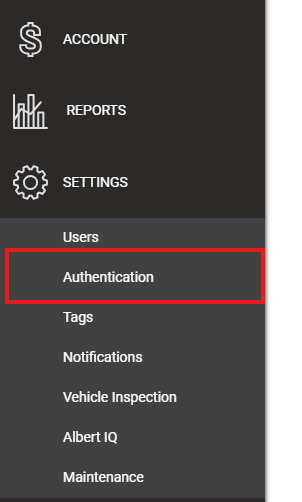
Log into Overdrive admin portal → Settings → Authentication
Toggle ‘Require All Users and Drivers to Authenticate with SSO’

In the ‘SSO Platform’ dropdown, select Google
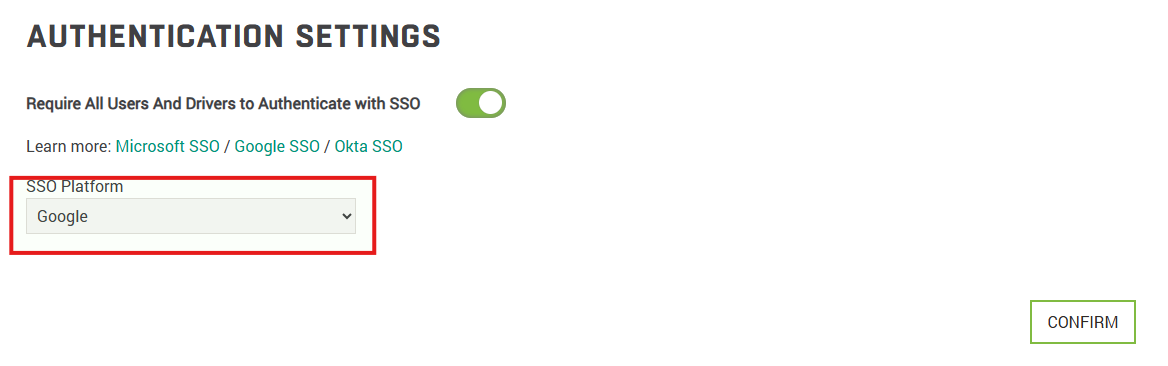
Click ‘SUBMIT’
Now all users will be required to login using Google as SSO
Service Provider (SP)-Initiated SSO
From your browser, navigate to the
overdrive.mikealbert.comEnter your email address and click continue
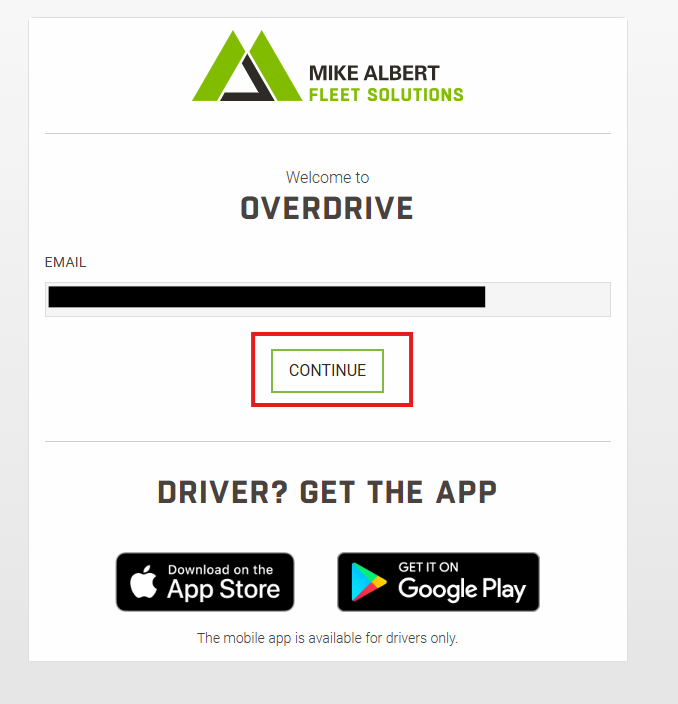
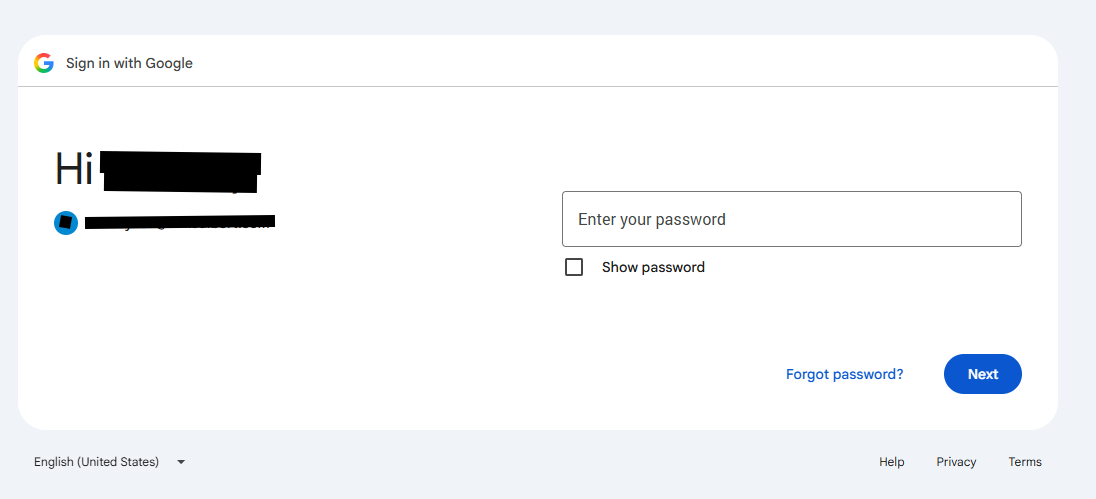
If all previous steps where completed, you will be redirected to Google's login page
Log in with Google.
The first time a user signs in, Google will show a consent screen for **Mike Albert Overdrive SSO** asking to allow access to their name, profile picture, and email address. Click **Continue** to proceed
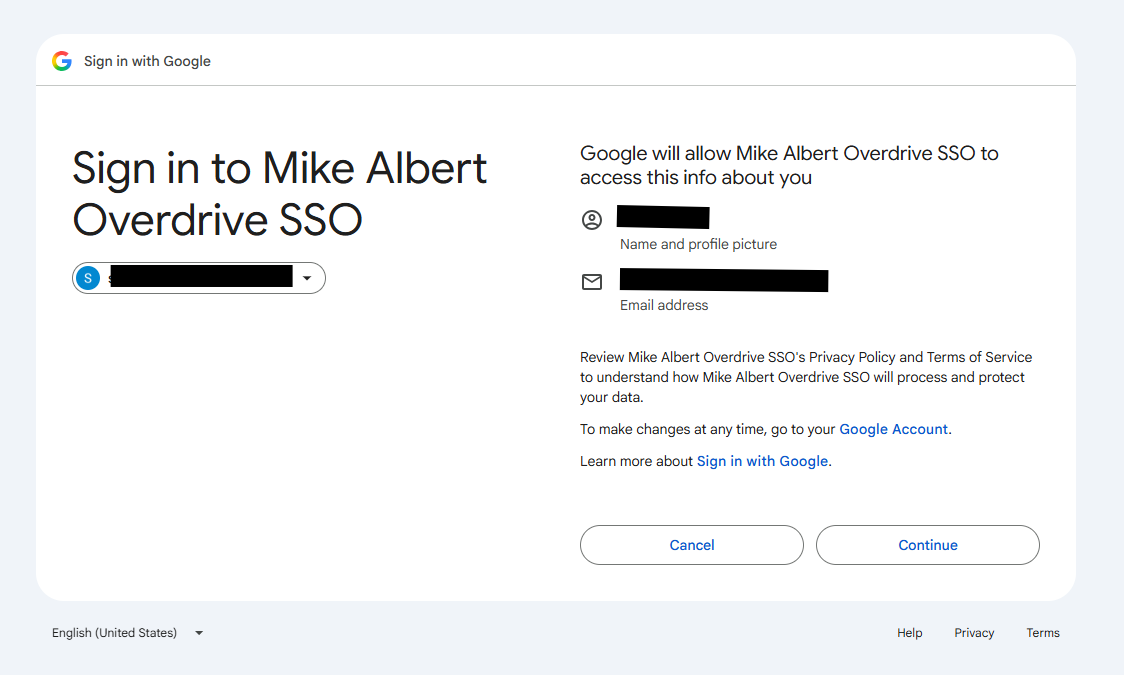
(This consent screen still appears even if a Google Workspace Super Admin has already completed the Google Admin configuration steps above. Those steps allow the app for your organization; they do not skip the first-time user consent prompt)
If your credentials are valid, you will be redirected to the OverDrive dashboard
Notes
Many organizations can complete only the Overdrive configuration steps. If users receive an access blocked error from Google, complete the Google Admin allow list steps above using the Client ID.
Users and their Overdrive roles must still be managed within Overdrive.